Tool: Outline View
A drawing has two lives. There is the picture — the thing you and everybody else sees, made of filled colour. And there is the geometry — the paths, the anchors, the actual objects the document is made of.
Most of the time, looking at the picture tells you the truth about the geometry. Occasionally it doesn’t, and those occasions are maddening precisely because everything looks fine.
Some examples, all of which have cost me an hour at some point.
A shape you thought you deleted is still there, exactly behind another shape of the same colour. Invisible. It moves when you box-select, it exports, it inflates the file, and there is nothing on screen to tell you it exists.
A path you thought was closed isn’t. It has a gap of a fraction of a pixel where the two ends nearly meet, and the fill renders anyway — quietly bridging the gap, because the renderer will happily close a nearly-closed path to fill it. It looks perfect. Then you export to SVG, or hand it to a plotter, or try to use it in a boolean operation, and the gap turns out to have been real all along.
Two shapes are stacked with a hairline of one poking out from behind the other, and it reads as a deliberate outline rather than a mistake, so you never question it.
A shape has been duplicated in place. There are now two of everything. Every subsequent edit you make touches one of them.
In every one of these cases, the picture is telling you a story about the geometry that is not true. The fill is doing what fills do — covering things up. That is its job, and it is very good at it, and it is precisely what you don’t want when you’re trying to find out what’s actually in your document.
Outline view turns the fills off. Every shape becomes a thin wireframe of its own path, and the drawing becomes the geometry rather than the picture. The hidden duplicate appears, because now there’s a stray outline where nothing should be. The open path appears, because you can see the gap. The shape stacked behind another appears, because there’s nothing to hide behind any more.

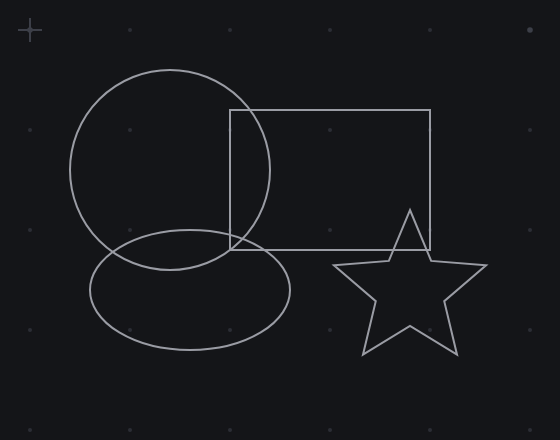
It’s the toolbar’s diagnostic instrument. Nothing else in the editor tells you what’s really there.
The reason I think this deserves an essay rather than a tooltip is that the underlying situation is completely general, and once you have the concept you start seeing it everywhere. You are working with a system that has a representation and a rendering, and you spend nearly all your time looking at the rendering, because that’s what you’re making. But you are editing the representation. And every so often those two things drift apart — the rendering looks right for a reason that has nothing to do with the representation being right — and when that happens, no amount of staring at the rendering will help you. You have to look at the other thing.
That’s what a debugger is. That’s what “view source” is. That’s what an X-ray is. The value of the tool is not that it shows you something prettier; it’s that it shows you something different, and the difference between the two views is exactly where your bug is. [1]
So the practical advice: when a drawing is behaving strangely — a selection grabbing things you didn’t expect, an export coming out wrong, a boolean operation refusing, a file mysteriously heavy — don’t stare harder at the picture. The picture has already told you everything it knows, and it may well be lying. Flip to outline and look at the truth.
Most of the time it takes about four seconds to see what’s wrong. There is a stray path. There is a gap. There are two of them. [2]
[1] The reason it’s satisfying is that it converts an invisible problem into a visible one, and visible problems are easy. Almost all of the difficulty in debugging anything is in the conversion, not in the fix.
[2] The second-best diagnostic is to select everything and read the count. If you believe there are nine shapes and the editor believes there are eleven, you have learned something important without looking at anything at all.